
Choosing a tone
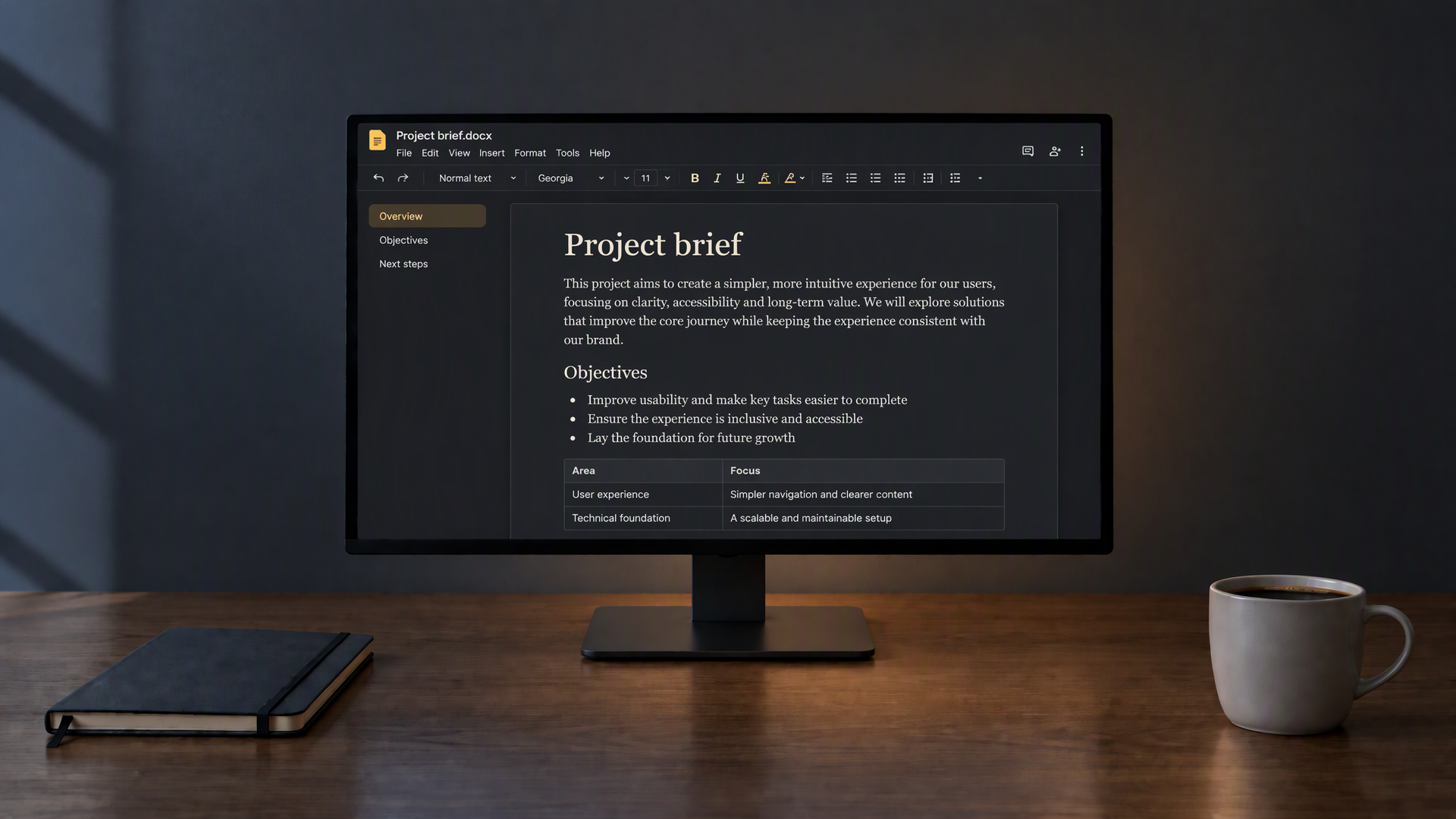
Classic is a neutral dark grey. Warm softens the page for evenings. Blue is cooler for daytime. OLED black turns the background fully off on OLED screens and saves a little power on phones.
Open Word documents in a dark, calm layout. Read locally without changing the original file.
Drop a Word file here
DOCX · headings, lists and tables · local only
Local processing in your browser · No account · No upload required
A dark reading page for Word documents, built into this site.
.docx is the usual format for reports, briefs and long notes written in Word. On a bright page those files can feel harsh for evening reading. This reader opens the file in your browser and shows headings, lists, tables and images on a dark background you choose.
Pick Classic, Warm, Blue or OLED black, adjust the text size and switch between serif and sans-serif type. Use the outline to jump to headings, adjust line spacing and alignment, and follow your scroll progress. Search finds words across the document, while Copy text and Download TXT provide a plain-text extract. Nothing is uploaded: the file is unpacked and rendered locally, and the original on your disk is never modified.
You can save a copy to My Library in this browser if you want to reopen the same document later without choosing the file again. That copy lives only on this device. Clearing site data removes it; your original Word file on disk is never touched.
The reader is built for reading, not editing. Comments, track changes and some advanced layout features are simplified so the page stays calm and scannable. When you need the full Word experience, open the original file in your usual editor.
Reading tools for Word files, all in one dark layout.
Choose a Word document or drop it onto the page. Headings, paragraphs, lists and tables are turned into a readable dark page.
Four dark tones and text size from smaller to larger. Switch between serif and sans-serif while you read.
Find every match and step through them. Matches are highlighted in the text so you can read the lines around them.
Headings, bullet lists and tables are preserved so long briefs stay organised on a dark page.
The file is processed in your browser tab. Nothing is sent to a server to open the document.
Reading settings only affect the view on this page. The .docx on your disk is not rewritten.
Drag the handle to compare the same kind of Word page in a bright tone and in the dark tone the reader uses.
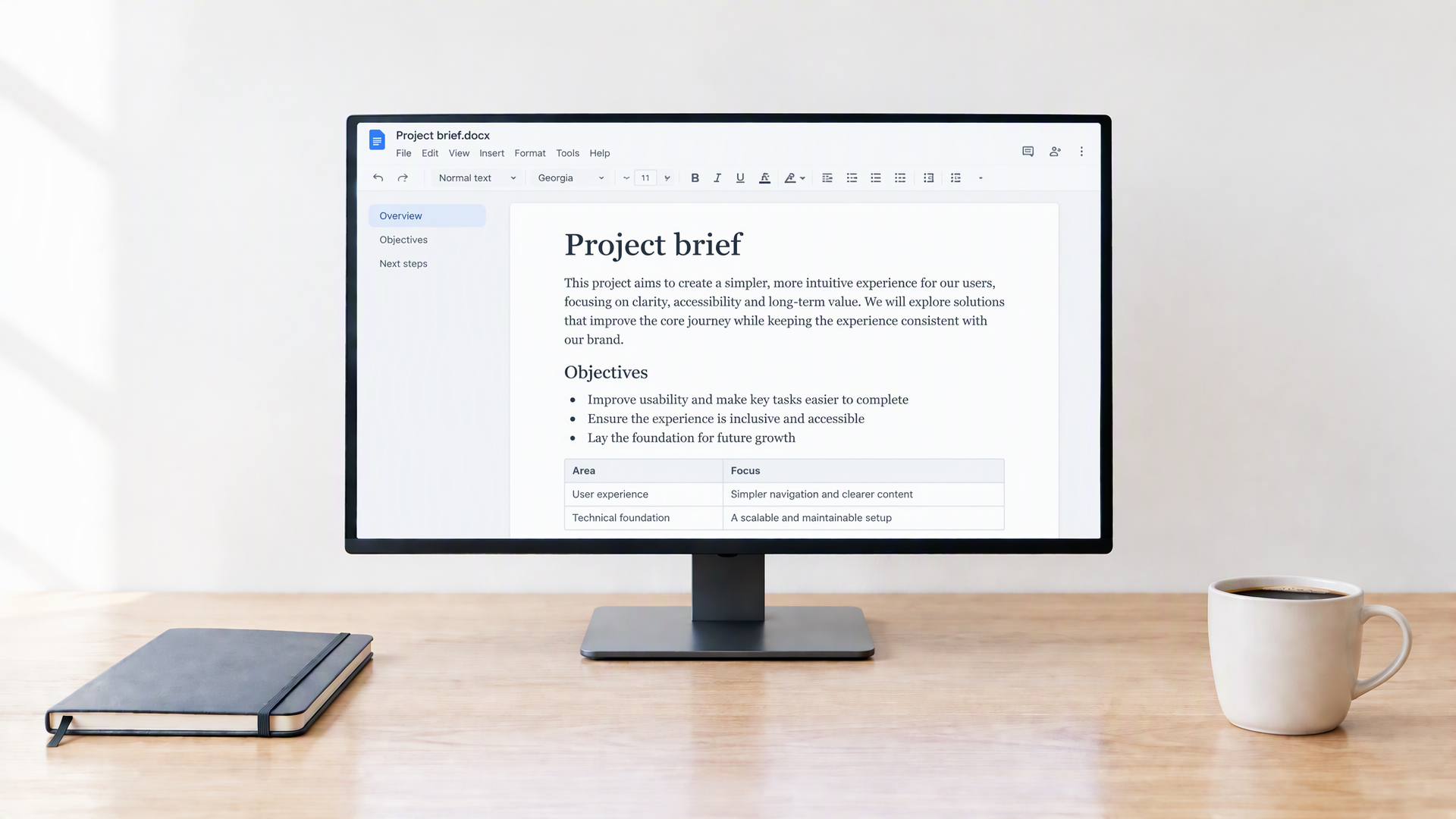
Long briefs and reports are often written in Word and opened on a white page. In a dim room that page is brighter than everything around it. A dark tone keeps headings, lists and tables readable while lowering the glare, so evening review feels lighter on the eyes.
The reader is meant for reading, not editing. Open the file, set the tone and size, search when you need a name or term, then close the tab. Your original document stays exactly as it was on your device.
Reviewing a Word document usually involves moving between its structure and its details: a heading, a paragraph, a reference and then the next section. An outline and a contained reading area make those moves easier without losing the surrounding page. Choose a readable line length and left alignment if justified text leaves uneven spaces, then use search to return to repeated terms. This view is best for following the content; when exact page breaks, comments or revision history matter, check the original document in Word as well.
Practical notes for briefs, reports and long drafts.
Classic is a neutral dark grey. Warm softens the page for evenings. Blue is cooler for daytime. OLED black turns the background fully off on OLED screens and saves a little power on phones.
Serif suits long narrative sections. Sans-serif suits lists and tables. Light text on a dark background can look thinner, so one step larger than on a white page is often more comfortable.
Headings, paragraphs, bullet and numbered lists, tables and most images are shown. Complex Word layouts, comments and tracked changes are simplified so the page stays easy to read.
Open search, type at least two letters and step through matches. Useful when you remember a name or a phrase but not which section it was in.
Three steps from a Word file to a comfortable page.
Formats, privacy and what the reader shows.
Standard .docx files (Word Open XML). That covers most documents created or saved in recent versions of Microsoft Word, Google Docs exports and many other editors. Older binary .doc files, password-protected documents and files that are not valid Zip packages cannot be opened here. If a file fails, try saving it again as .docx from Word and open the new copy.
No. The file is read entirely in your browser with a local document library. There is no upload step and no server-side conversion. Network requests you may see are only for the page itself and the script that parses .docx in the tab. Your document bytes stay on the device.
No. Tone, text size, typeface and search only affect the view on this page. The reader never writes back to the file you chose. Download or open the same file in Word and it will look as it did before.
Yes, in a simplified reading layout. Most tables, bullet lists, numbered lists and embedded images appear on the dark page. Multi-column designs, text boxes, headers and footers may be flattened so the main body stays easy to follow. For pixel-perfect layout, use Word; for comfortable reading in the dark, this view is enough for most briefs and reports.
Only documents you explicitly add. A copy of the .docx bytes is kept in this browser’s storage on this device, together with the file name and size. You can reopen it from the library menu without choosing the file again. Clearing site data or browser storage removes those copies; it does not delete the original files on your disk.
Yes. Open search from the toolbar, type at least two letters and step through matches. Matches are highlighted in the text. Search works on the visible body text after conversion; text that lives only inside images will not be found.
Yes. The reading area adapts to narrower screens, and you can change tone and text size the same way. Very large documents still depend on the memory available in the mobile browser.
Yes. There is no account, no subscription and no limit on how often you open a document here. Optional library storage uses space in this browser only.
Other tools in the same dark layout, for the rest of your reading and work.