Image Color

Check and adjust image colours so photos and charts look right on a dark screen. Open an image, read the numbers, then dim, lift or invert it until it sits well next to the dark page. Everything happens in your browser.

Colour tool

Dark Image Color

Drop an image here

JPG · PNG · WebP · GIF · local only

Runs in your browser · No account · Nothing is uploaded

What is Image Color?

A small colour check for photos, screenshots and charts that will sit on a dark screen.

A white chart or a bright photo that looks fine on paper can glare on a dark page. The pixels that are almost white pull the eye and make the rest of the screen look dim. Image Color measures the picture first, shows you where the bright and dark areas are, and then lets you adjust it until it fits the page.

Open an image and the tool reads the average brightness, the share of bright areas and the share of deep shadows. The histogram shows the same thing as a shape. Auto fix sets the sliders for you, and you can still move any of them by hand. Compare the original and the adjusted image with the slider above the panel.

Nothing is uploaded. The image is processed on this device, the tone and slider settings are remembered in this browser, and Download saves a PNG at the original size.

What Image Color Does

Checks and adjustments for images on a dark screen, with nothing to install.

Brightness check

See the average brightness of the image as a number, so you know before you open it on a dark page whether it will glare.

Histogram

A small histogram shows how the pixels spread from black to white, so you can see the bright and dark parts at a glance.

Brightness, contrast, saturation

Four sliders adjust the picture. Each one changes the preview at once, so you see the result before you save.

Dim highlights

Pull back only the brightest areas, such as white pages or a bright sky, and leave the midtones and shadows alone.

Invert for charts

Turn a chart or screenshot with a white background into a dark one. Photos look odd when inverted, so use this for charts.

Auto fix and presets

Auto fix measures the image and sets the sliders for a dark screen. The Dark preset is a soft starting point for photos.

Bright chart or dark chart

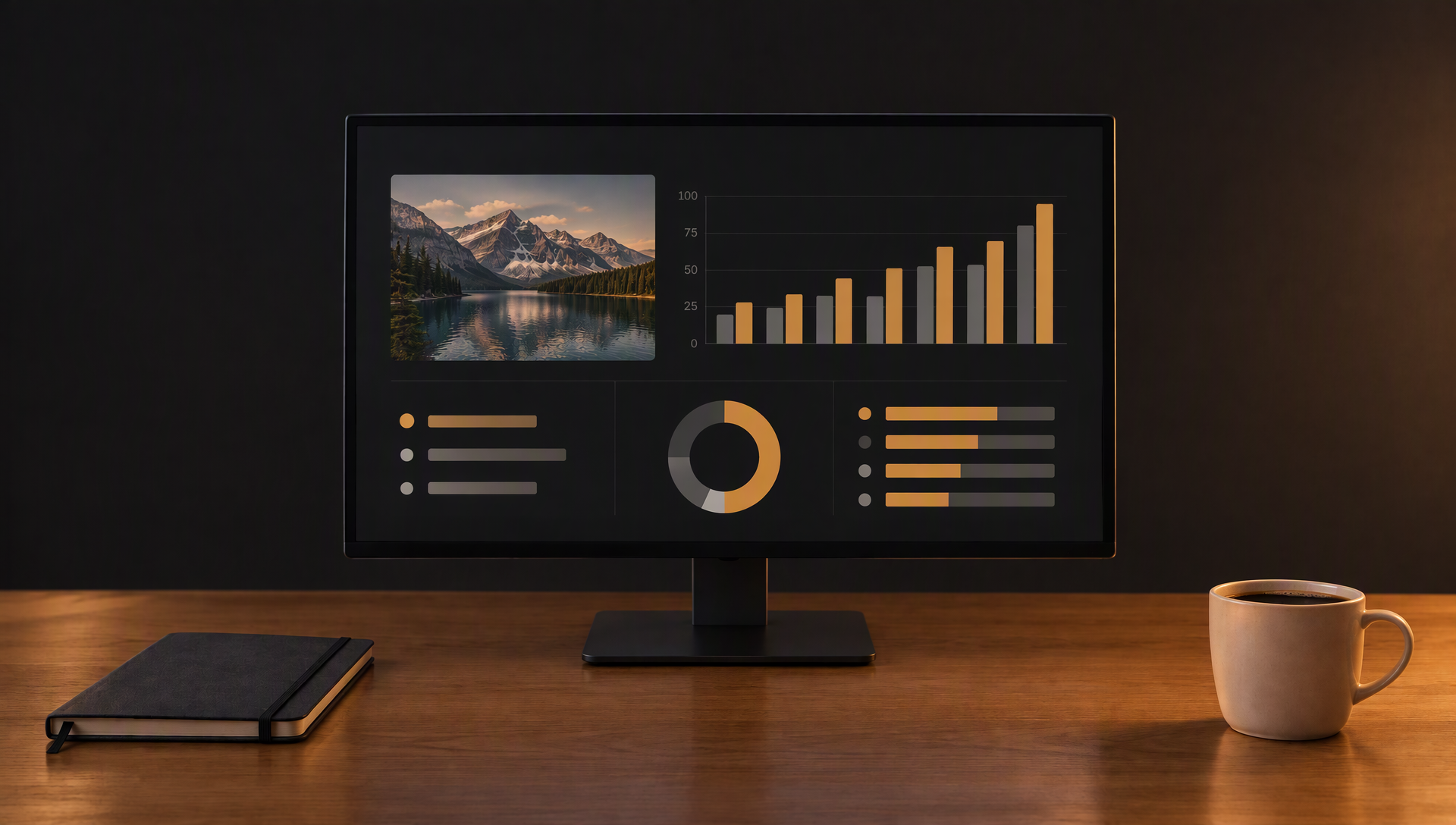
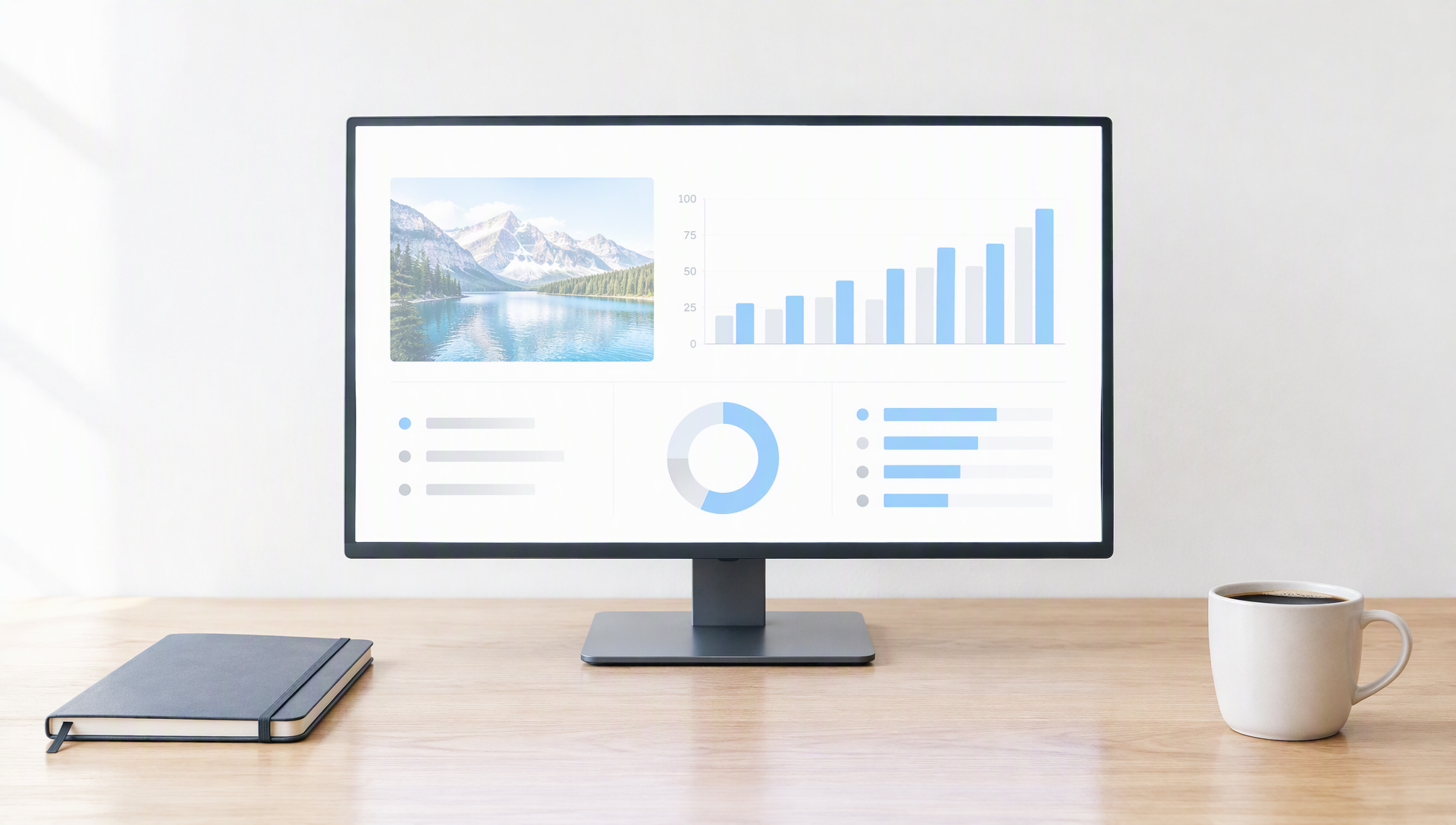
Drag the handle to compare the same desk on a bright page and on the dark page. The chart, the photo and the layout stay the same, only the colours and light change.

A monitor with a bright white analytics screen on a pale desk, glaring in daylight
Light Dark

Why image colour matters on a dark page

A dark page makes every white pixel stand out. A chart with a white background, or a photo of a bright sky, can be the brightest thing on the screen, and it pulls the eye away from the text around it. The image on the left is the same desk as on the right, and the difference is only in the light and the colour of the screen.

The adjustments are small. Dimming the highlights and lowering the brightness a little keeps the detail, and the amber tones keep the image in the same warm mood as the page. Drag the handle slowly to see where the glare drops off.

Judge an adjusted image against the page where it will actually appear, not against the picture alone. A bright border, a pale sky or a white chart background may dominate a dark layout even when most of the image is already subdued. Reduce highlights carefully and compare faces, labels and small details before saving: they should remain recognisable rather than disappearing into shadow. For charts and diagrams, check that colours still separate categories clearly; making every colour darker can remove information along with the brightness.

Adjusting Images for a Dark Screen

Practical habits for photos, screenshots and charts you use while reading or working.

Start with the numbers

Open the image and read the average brightness and the bright areas before you touch a slider. An average above the middle of the scale, or more than a tenth of the pixels near white, is a sign the image will glare on a dark page. The numbers tell you how far to go.

Dim the highlights first

Lower the highlights before the brightness. This keeps the midtones and shadows where they are and only softens the whites and bright skies. Brightness moves the whole picture, so use it when the image is dark overall rather than when a few areas are too bright.

Invert charts, not photos

A chart on a white background turns into a clean dark chart when inverted, and its colours keep their meaning. A photo inverted looks like a negative, so for photos use the highlight and brightness sliders instead.

Save a copy, keep the original

Download writes a new PNG and leaves the file you opened unchanged. Keep the original for print or for other screens, and use the adjusted copy in the dark reader, the notes or a document you read at night.

How to Check an Image

Three steps from a bright image to one that sits well on a dark page.

  1. Open the imageChoose a file or drop it on the panel. The preview shows the image on the left and the adjusted version on the right.
  2. Read the checkLook at the average brightness, the bright areas and the histogram. Auto fix sets the sliders if you want a starting point.
  3. Adjust and downloadMove the sliders until the image sits calmly on the dark page, then press Download to save a PNG.

Frequently Asked Questions

Answers about the checks, the sliders and what the page keeps.

Is my image uploaded?

No. The image is read and changed in your browser. It is not sent to a server, and nothing is stored after you close the page.

Which formats can I open?

JPG, PNG, WebP and GIF. For GIF only the first frame is checked and saved.

Why does the preview look smaller than the download?

The preview is reduced to fit the panel so the sliders respond at once. The download is processed at the full size of the image, and the colours are the same.

What does Auto fix change?

It measures the average brightness and the share of bright pixels, then sets brightness and highlights to bring the image toward a comfortable middle tone. Contrast and saturation are left at zero, so you can set them yourself.

Does the tool keep my settings?

The tone and the slider values are saved in this browser, so the next image starts from them. The image itself is not saved.

Does it work on a phone?

Yes. The sliders stack under the image, and the preview fits the width of the screen.

Is it free to use?

Yes. There is no account, no limit on the number of images and no watermark.