Dark Notepad

Take notes on a dark page that stays easy on the eyes during long sessions. Keep several notes, search them, and pick the tone that suits the room. Everything is saved in your browser as you type.

Notes tool

Dark Notepad

18

Saved in this browser as you type · No account · Nothing is uploaded

What is the Dark Notepad?

A quiet page for notes, drafts and plans that you write over many hours.

A white page is bright, and during a long writing session the glare builds up. The Dark Notepad gives you a calm, dark writing surface with soft light text, so your eyes can stay on the words instead of the background. It is a plain place to think on paper: a title, a body, and nothing else competing for attention.

Start a note and write. Each note is saved in this browser as you type, so you do not need to press a save button. Keep as many notes as you need, search them by title or by text, and switch between them from the list on the left. The tone, size and typeface you choose stay the same the next time you open the page.

Your notes stay on your device. The page has no account and sends nothing to a server, so what you write is only in the browser you use. Copy a note or download it as a .txt file when you want to keep it somewhere else.

What the Dark Notepad Does

Writing tools for long sessions, all in one dark layout.

Several notes

Keep a list of notes on the left. Create a new one with one click and switch between them without losing your place in any of them.

Search your notes

Type in the search box to filter the list by title or by any word in the text. Clear the box to see every note again.

Four tones

Classic, Warm, Blue and OLED black. Pick the one that fits the time of day and the light in the room, and change it at any moment.

Size and typeface

Make the text larger or smaller and switch between serif and sans-serif type. The page keeps your choice for the next visit.

Autosave

Every change is saved in this browser a moment after you stop typing. Your notes are still there when you come back, even after a reload.

Copy or export

Copy a note to the clipboard or download it as a plain .txt file, ready for any other app.

Light page or dark page

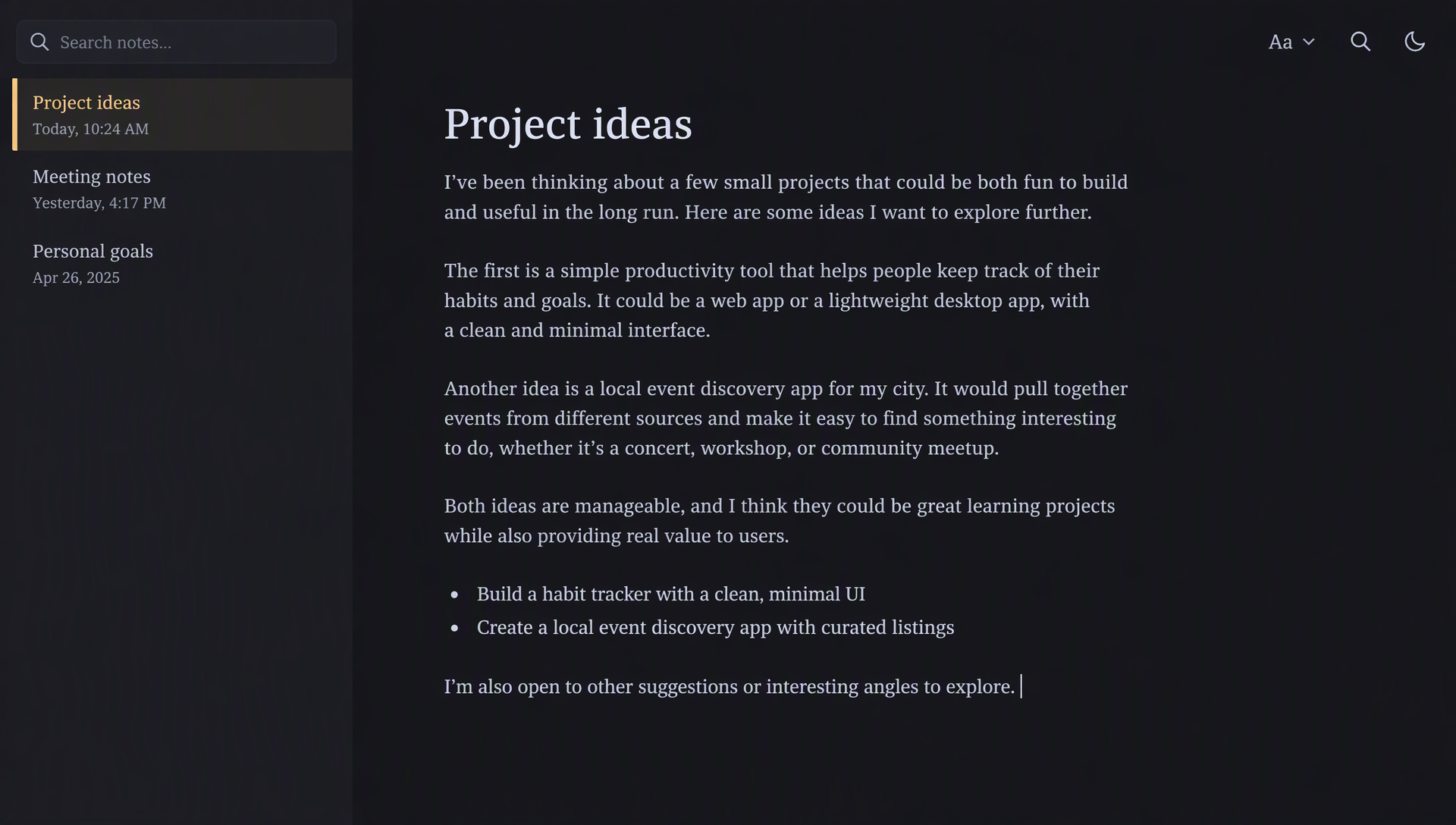
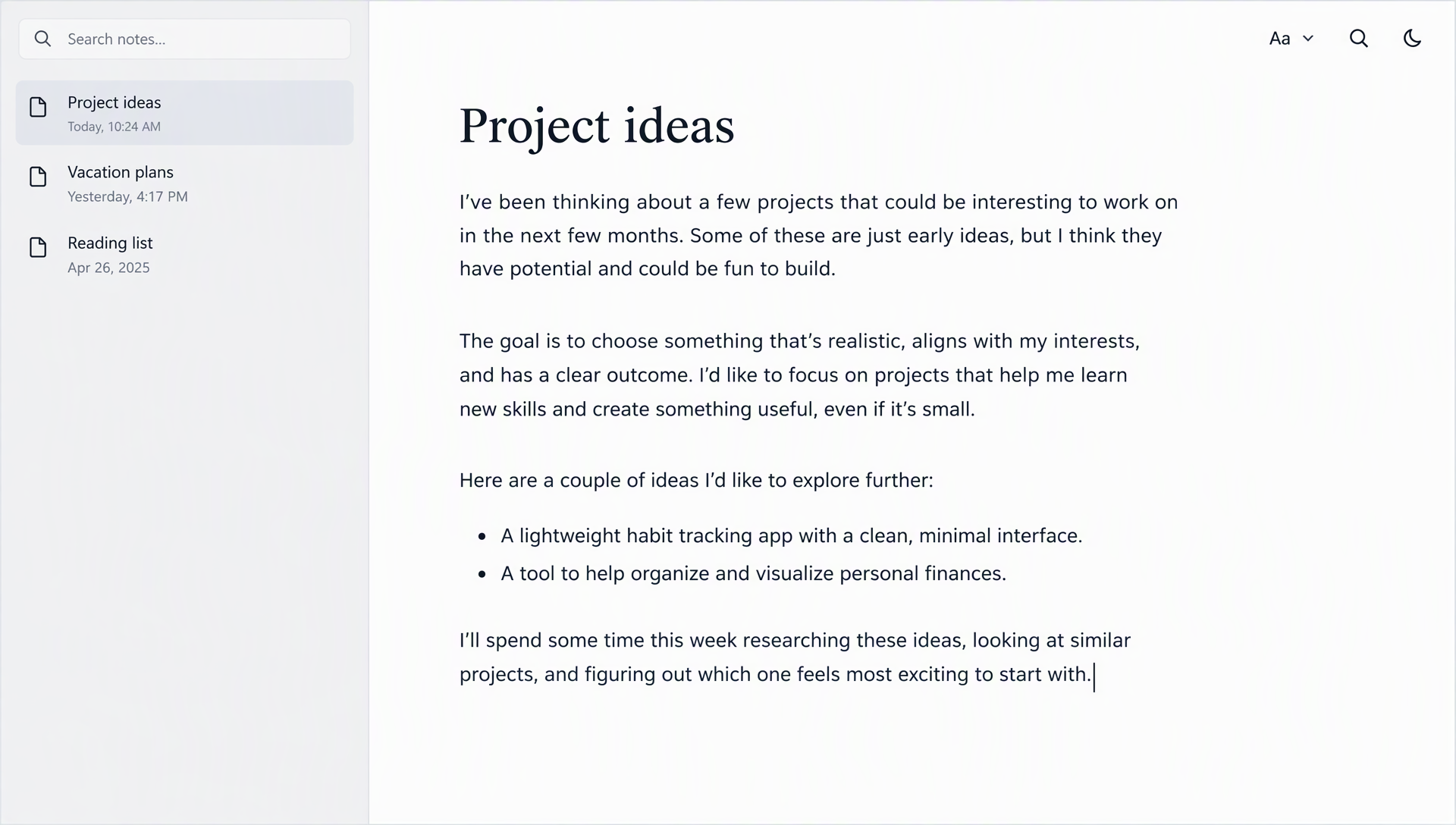
Drag the handle to compare the same note on a bright page and on the dark page the notepad uses.

A notes app on a bright white page
Light Dark

Why a dark page for notes

Notes are written and reread for hours, often in a room with little light. A bright page pulls the eyes toward the background, and the letters seem to swim. The slider above shows the same note on both pages. Drag it slowly and notice how the glare fades while the title and the lines of text stay easy to follow.

The dark page changes only the colours and the typeface, never the words or the structure. The text colour and the background are chosen together so contrast stays high, and paragraphs keep the spacing you gave them. A note reads the same as before, only with less strain.

Notes often grow in small bursts: a sentence during a call, a checklist between tasks, or an idea you want to keep before it disappears. A consistent dark writing surface makes those returns less visually abrupt, especially when the rest of your workspace uses dark windows. Leave enough space between paragraphs, give each note a descriptive title and keep lists short enough to scan. The aim is not to decorate the page, but to make it easier to find your place and carry on writing without rebuilding your train of thought.

Writing Notes in the Dark

Practical habits for notes you keep for a day, a project or a whole year.

Choosing a tone

Classic is a neutral dark grey that suits most rooms. Warm leans toward amber for evening work. Blue is slightly cooler for daytime. OLED black turns the background off on OLED screens, which saves battery on a phone. Write one session in each and keep the tone you stop noticing.

One note per topic

A note that holds one subject is easier to find later than a single page with everything in it. Give each note a short title that you would type into a search box, such as “Project ideas” or “Meeting with Anna”. The list on the left then reads like a table of contents for your work.

Searching across notes

The search box filters the list by title and by the words in each note. Use a distinctive word from the note, such as a name or a term, rather than a common one. When the list is short, scroll it by eye; search is for when the list grows.

Keeping a copy

Notes live in the browser you write in. Export a note as a .txt file when it matters, or copy it into another app. Clearing site data in the browser removes saved notes, so keep a copy of anything you cannot rewrite.

How to Use the Notepad

Three steps from a blank page to a note you can return to.

  1. Start a notePress “New note”, give it a title and write. The note is saved as you type, with no button to press.
  2. Set the tone and typePick Classic, Warm, Blue or OLED black, then adjust the text size and the serif or sans-serif type.
  3. Find and keep itSearch the list to find a note, copy it or export it as a .txt file. Your notes stay in this browser until you delete them.

Frequently Asked Questions

Answers about saving, privacy and what the notepad keeps.

Do I need to save my notes?

No. Each change is saved in this browser a moment after you stop typing. The status under “About this note” shows when the last save happened. Ctrl+S (or Cmd+S) saves straight away.

Are my notes uploaded anywhere?

No. The notepad has no account and sends nothing to a server. The notes are kept in the browser on this device.

How many notes can I keep?

There is no fixed count. Notes share the storage space this browser gives the site, which is typically several megabytes. Plain text notes use very little of it. If the space runs out, the notepad shows a message and asks you to export or delete some notes.

Will I lose my notes if I clear browser data?

Yes. Notes are stored in this browser, so clearing site data or using a private window removes them. Export any note you want to keep before you clear the browser.

Can I export my notes?

Yes. “Export .txt” downloads the note you are viewing as a plain text file. “Copy” puts the text on the clipboard so you can paste it into any other app.

Does it work on a phone?

Yes. The list of notes and the editor stack on a narrow screen, and the text takes the full width. The tone, size and typeface controls work the same way.

Is it free to use?

Yes. There is no account, no subscription and no limit on the number of visits.