Text Reader

Paste an article or open a plain text, Markdown or HTML file and read it in a dark, calm layout. Four tones, adjustable size, search and a saved place, all in your browser.

Text tool

Dark Text Reader

Drop a text file here

.txt, .md or .html · up to 5 MB · local only

Read locally in your browser · No account · No upload required

What is the Text Reader?

A dark reading page for articles, notes and plain text.

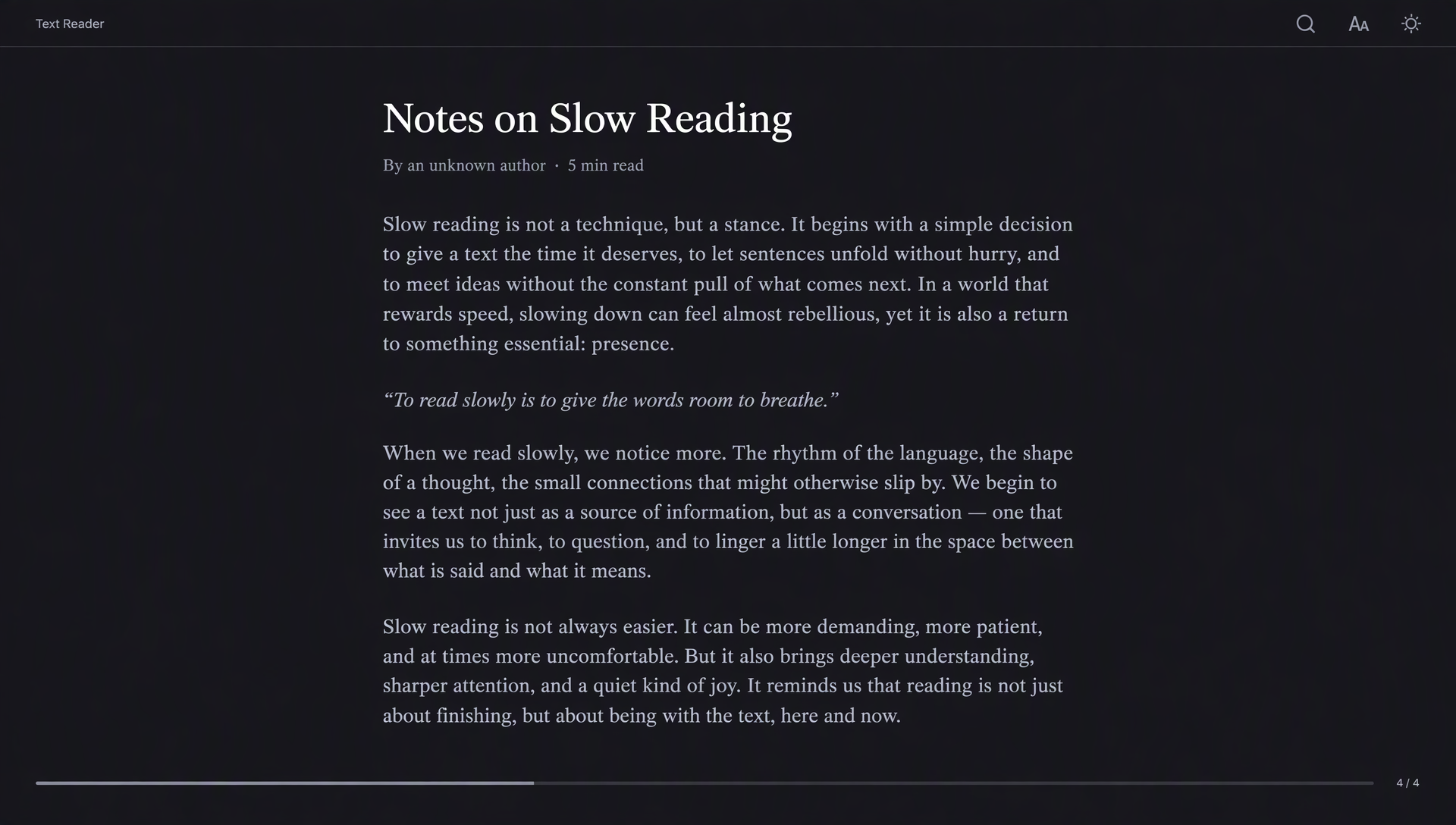
Most articles and documents arrive on a bright white page. Long reading on that page is tiring, and the glare follows you from the first paragraph to the last. The Text Reader takes the words you paste or the file you open and sets them in a dark tone that you choose, so the reading surface stays calm while the letters stay sharp.

Paste text into the box or drop a .txt, .md or .html file onto the page. Blank lines become paragraphs, Markdown headings are kept as headings, and HTML files are reduced to their text, so scripts and styles from the page are never run. Classic, Warm, Blue and OLED black are ready to use, and the size and typeface change at any moment without reloading the text.

The reader keeps a few things for you in this browser: the text you opened last and how far down the page you got. Search finds every match in the text and moves from one to the next. Nothing is sent to a server, and the file on your device is never changed.

What the Text Reader Does

Reading tools for plain text, all in one dark layout.

Paste or open

Paste an article straight from the browser, or open a .txt, .md or .html file. Both routes end in the same dark reading view.

Search the text

Find every match and step through them with the arrow buttons or the Enter key. Each match is marked where it appears.

Remembers your place

The text and the point you reached are saved in this browser, so the next visit opens where you stopped.

Length and time

See the word count, the number of paragraphs, an estimate of reading time and how much is left from where you are.

Tones and type

Four dark tones and text sizes from 15 to 26 pixels. Switch between serif and sans-serif type while you read.

Clean paragraphs

Line breaks and blank lines keep their rhythm, and headings in Markdown files are shown as headings. Nothing from the source page is run.

Light page or dark page

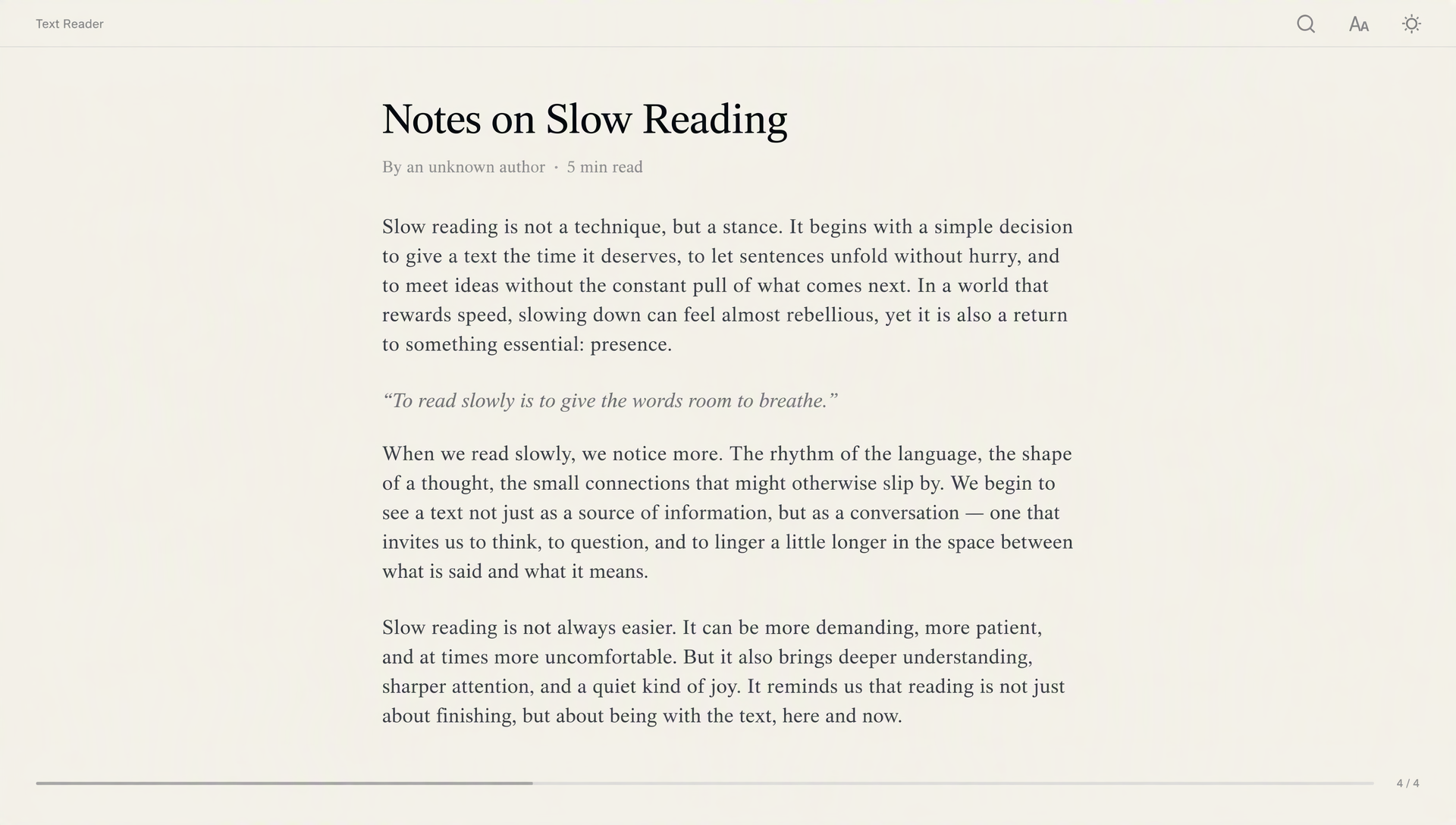
Drag the handle to compare the same article in a bright tone and in the dark tone the reader uses.

An article page in a bright tone
Light Dark

Why the comparison matters

A long article on a white page asks the eyes to work against a bright field for every line. The slider above shows the same kind of page in both tones. Drag it slowly and notice how the glare fades while the headline and body text stay easy to read.

The dark tone changes only the colours and the typeface on the page. The text colour, the background and the heading colour are chosen together, so contrast stays high. Paragraph spacing and headings stay where the writer put them, which means the article still reads as the same article, only calmer.

A useful comparison keeps the content familiar, so you can judge the reading surface rather than a different article. Look at a paragraph with several lines, a short heading and a link, then choose the tone that leaves each element easy to distinguish at your usual screen brightness. Dark mode is a preference, not a guarantee of comfort: room lighting, font size and line length still matter. If the letters seem to merge or glow, try a softer background and a larger text size instead of simply making the page darker.

Reading Long Text in the Dark

Practical notes for articles, notes and documents you read in one sitting or over several days.

Choosing a tone

Classic is a neutral dark grey that suits most rooms. Warm leans toward amber and works well in the evening. Blue is a slightly cooler dark for daytime reading. OLED black turns the background fully off on screens with OLED panels, which saves battery on phones. Try each for one article, then keep the one you return to without thinking about it.

Size and typeface

Serif type suits essays and long articles, because the small strokes at the ends of letters guide the eye along a line. Sans-serif type suits documentation, lists and short notes. Light text on a dark background can look thinner, so a size one or two steps larger is often more comfortable than on a white page.

Using search

Search is useful when you remember a name or a term but not the paragraph. Open the search bar, type at least two letters and press Enter to move from one match to the next. Matches are highlighted in the text, so you can read the lines around them without losing your place.

Pacing a long read

The side panel shows the word count and an estimate of reading time at about 230 words per minute. It is a guide, not a promise. Technical writing and dense essays take longer. Use the time left as a planning tool: it tells you whether a piece fits before a meeting or whether it is better to stop at a clear break.

How to Read Text Here

Three steps from a page or file to a comfortable read.

  1. Add your textPaste it into the box or press “Choose file” and pick a .txt, .md or .html file. You can also drop the file onto the page.
  2. Set the tone and typePick Classic, Warm, Blue or OLED black, then adjust the text size and the serif or sans-serif type.
  3. Read and searchScroll at your pace, search for any word and come back later. The place you reached is saved in this browser.

Frequently Asked Questions

Answers about the formats, privacy and what the reader keeps.

Which files can I open?

Plain text (.txt), Markdown (.md, .markdown) and HTML (.html, .htm) files up to 5 MB. Text is read as UTF-8. You can also paste text directly. For PDF files, use the Dark PDF Reader on the home page, and for e-books, use the EPUB Reader.

Is my text uploaded anywhere?

No. The text is handled by your browser on your device. The reader does not send it to a server.

What does the reader save?

The last text you opened, with its name, and how far down the page you got. Both are kept in localStorage in this browser only. Press “Clear saved text” to remove them. Clearing the site data in your browser does the same.

Why is a long text not saved?

Browsers limit how much a page can keep in localStorage. Texts above about 1.5 million characters are still readable in the current visit, but they are not kept for the next one.

What happens to HTML files?

The reader takes the visible text from the file and drops scripts, styles and embedded media. Images and links are not shown. Use this for articles you saved to disk and for pages where you want the words without the layout.

Does the reader change my file?

No. The reader never writes back to the file. Tone, size and typeface are display settings, so the original stays as it is on your device.

Does it work on a phone?

Yes. The text takes the full width of the screen, the controls wrap onto more rows, and touch scrolling works in the reading area.

Is it free to use?

Yes. There is no account, no word limit and no watermark.