Contrast in Dark Themes: How to Pick Colours That Stay Readable
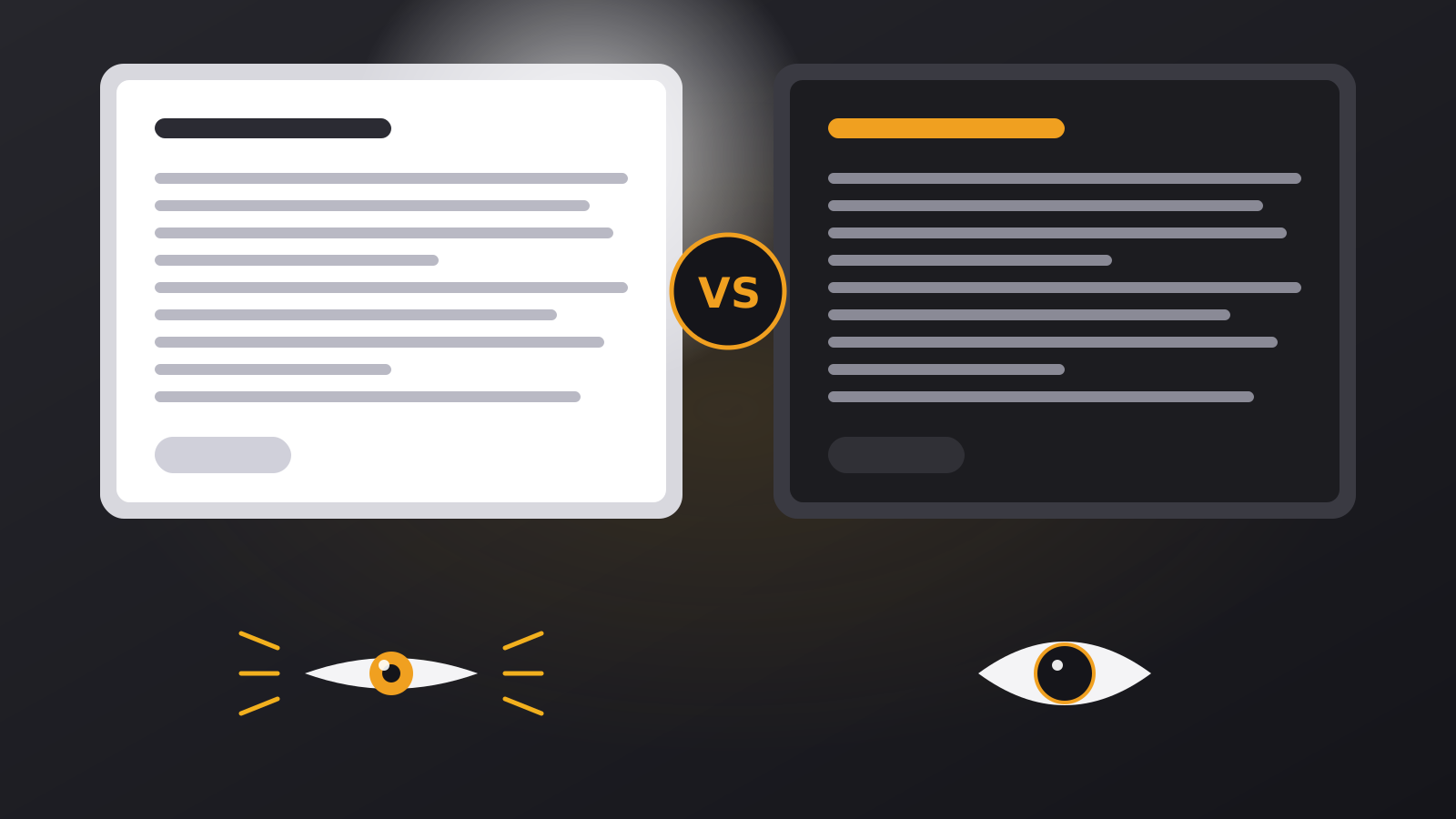
Almost every dark theme starts from the same idea: take the light one and turn the lights off. That is how you end up with grey text you cannot read, and a screen that looks stylish only in a screenshot.
What “contrast” actually measures
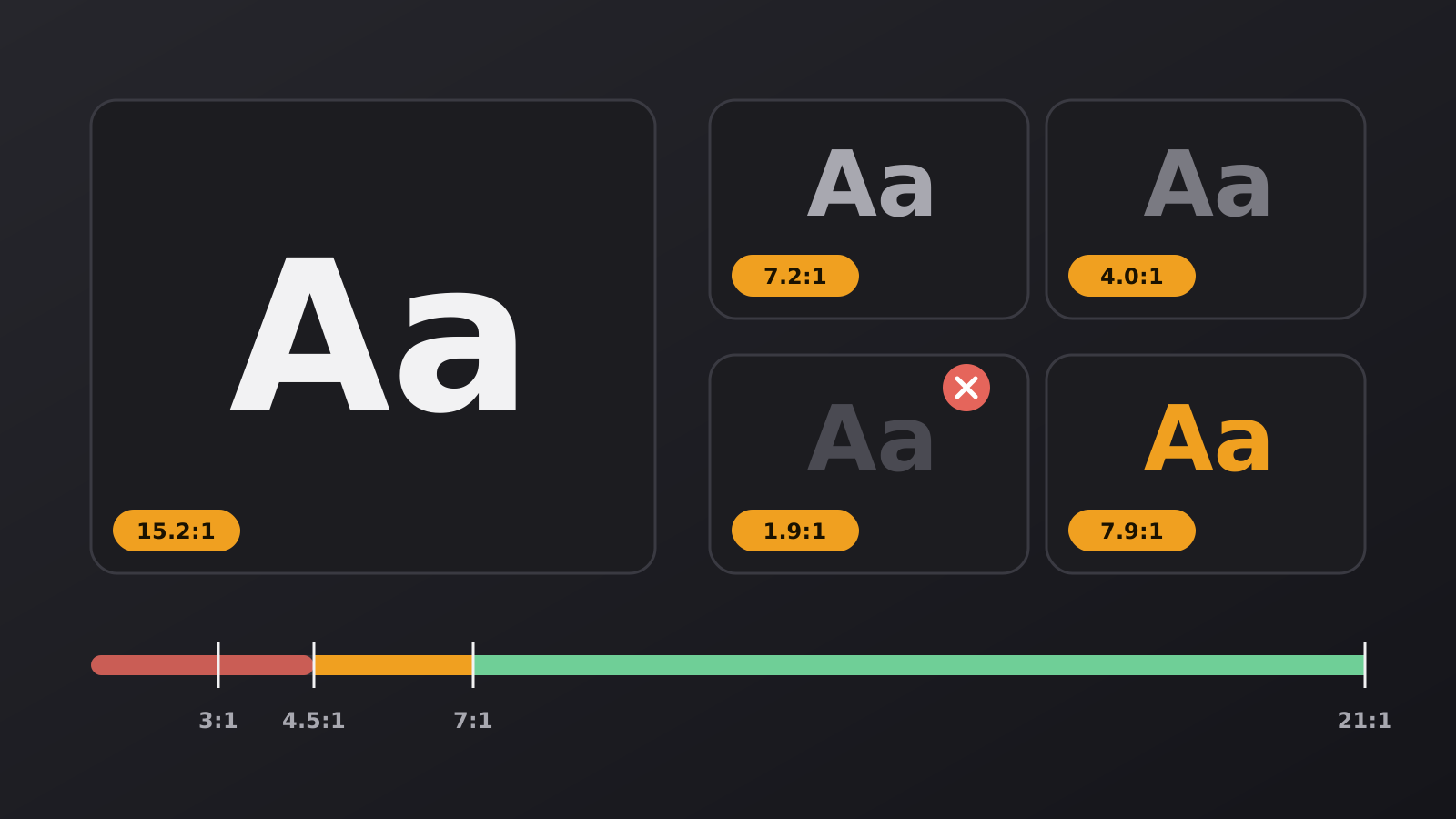
Contrast is the difference in brightness between text and the colour behind it. Designers express it as a ratio from 1:1 (no difference at all, such as grey on the same grey) to 21:1 (pure white on pure black). The calculation uses the relative luminance of the two colours, so it reflects how bright they look to the eye rather than how different their hex codes seem.
The numbers matter because they give you something you can check. “This looks readable” depends on your monitor, your eyes and the room. A ratio does not.
The numbers to remember
The Web Content Accessibility Guidelines (WCAG) set the thresholds most teams follow:
- 4.5:1 for normal body text (level AA).
- 3:1 for large text, which means about 24 px regular or 18.66 px bold, and for interface parts such as icons and input borders.
- 7:1 for normal text at the stricter level AAA.
These apply to dark themes in exactly the same way as to light ones. A dark theme is not an exception just because it looks calm.
A real example: the colours on this site
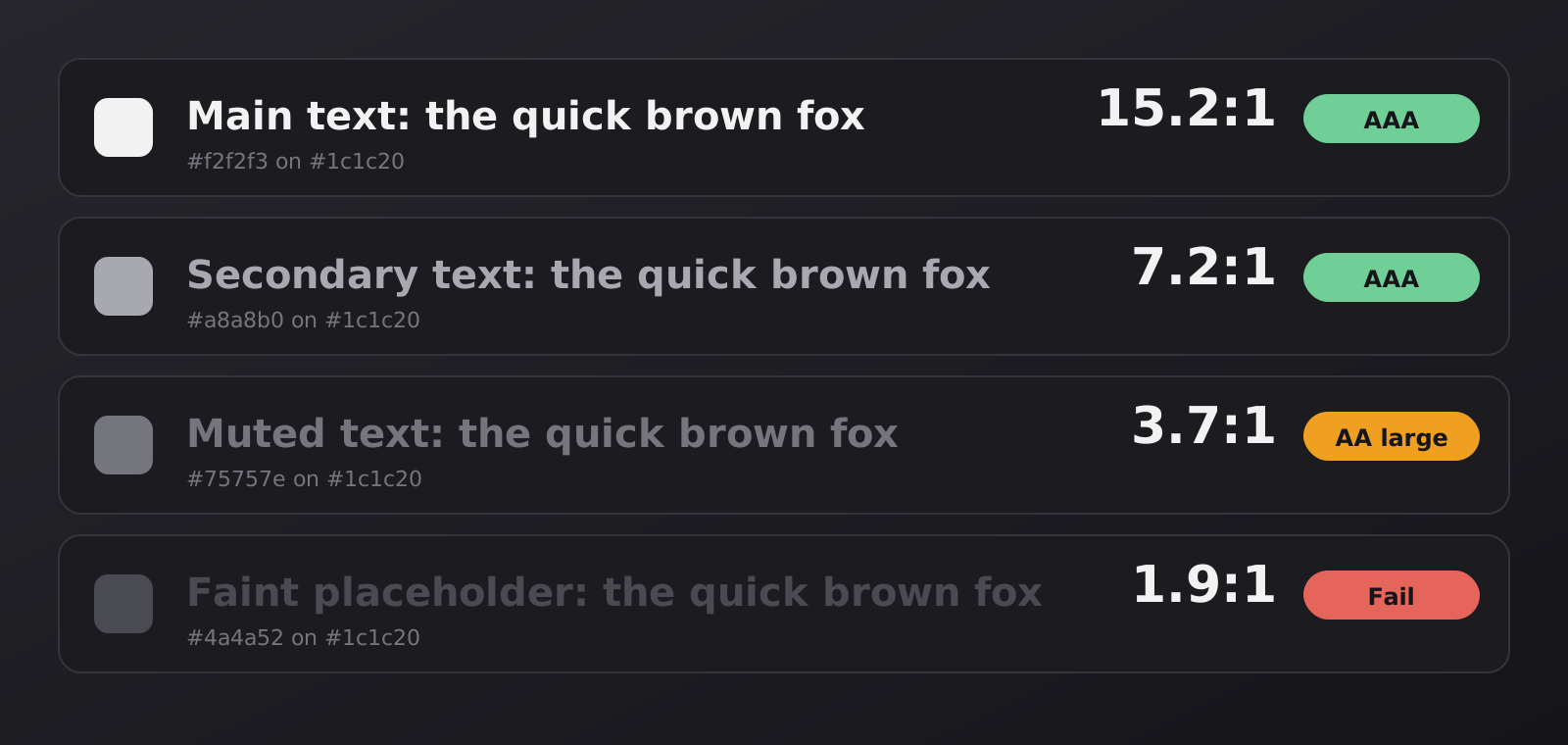
Here are the ratios for the text colours of this website, measured on its dark background (#1c1c20):
| Colour | Use | Ratio | Result |
|---|---|---|---|
| #f2f2f3 | Main text | 15.2:1 | AAA |
| #a8a8b0 | Secondary text | 7.2:1 | AAA |
| #f0a020 | Accent (amber) | 7.9:1 | AAA |
| #75757e | Muted text | 3.7:1 | Large text only |
| #4a4a52 | Faint grey | 1.9:1 | Fail |
The muted grey is fine for a small caption only if you accept that it is quiet. Anything a visitor must read, such as a form label, belongs higher in the table.
Why more contrast is not always better
It is tempting to answer the problem with the maximum: white text on black. That is 21:1, and it is also one of the more tiring choices for long reading. The letters seem to vibrate against the background. People who already see blurred edges around bright shapes, including many people with astigmatism, notice it most.
A softer pair works better. Off-white text, such as #e6e6e8 or #f2f2f3, on a dark grey like #1c1c20 gives ratios between roughly 13:1 and 15:1. That is far above every WCAG threshold and a lot kinder to the eye.
Six common mistakes in dark themes
- Grey on grey placeholders. Hint text inside inputs is often the first thing to fall under 3:1.
- Saturated colours straight from the light theme. A bright blue link that works on white can vibrate on a dark background. Lighten and slightly desaturate it.
- Black shadows that disappear. On a dark page, depth comes from lighter surfaces, not darker shadows. A card should be a little lighter than the page behind it.
- Identical colours for disabled and active states. They need to be visibly different, not just a few points apart.
- Relying on colour alone. Red and green status dots look similar to many people. Add an icon or a word.
- Forgetting the borders. Input outlines and icons need 3:1 as well, and a thin dark-grey line on a dark background usually does not reach it.
A quick routine for choosing dark-theme colours
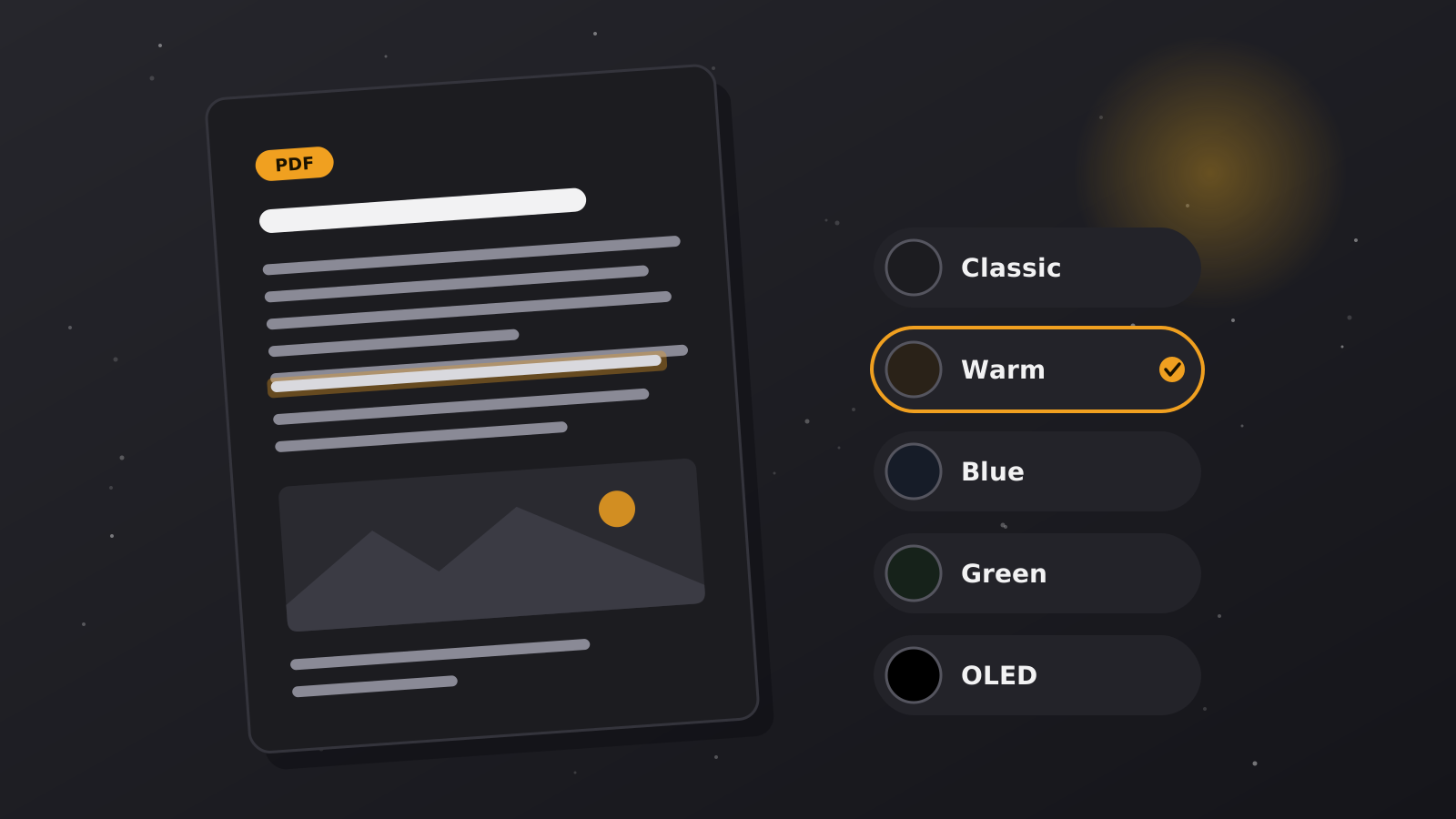
- Start with the background. A dark grey with a hint of blue or warm tint feels more natural than pure black.
- Choose the main text colour so it reaches at least 10:1.
- Choose the secondary text colour and check that it still passes 4.5:1.
- Pick one accent colour, then test it as text and as a button background separately. It rarely passes both ways with the same shade.
- Check every pair with a tool, not by eye. Then look at the result on a phone at night.
Check your own colours
You can test any pair with the Dark Contrast Checker on this site. Enter a text colour and a background, see the ratio and a live preview, and try different combinations until they work. It runs in your browser, so nothing is sent anywhere.
Good contrast is not decoration. It decides whether a person can read what you wrote, and it is the quickest way to make a dark theme feel as comfortable as it looks.
Make your screens a little calmer
Darken websites with the free extension, or open a document in a dark reader that keeps your file on your device.